
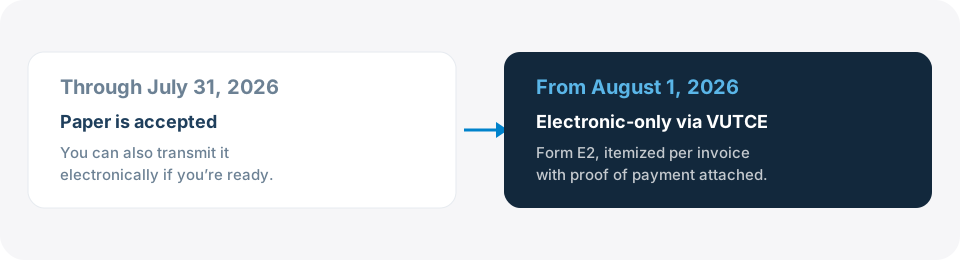
Where the calendar stands: the transitional scheme — preparing the value declaration on paper or in a spreadsheet, without transmitting the MVE yet — runs through October 31, 2026. From November, electronic filing through the trade single window phases in by customs regime, and definitive imports — most importers — close out the calendar on January 15, 2027. One caveat: the duty to prepare a value declaration (article 59, section III of Mexico’s Customs Law) applies at all times; what keeps moving is how and when you transmit it.
What is it, in plain words?
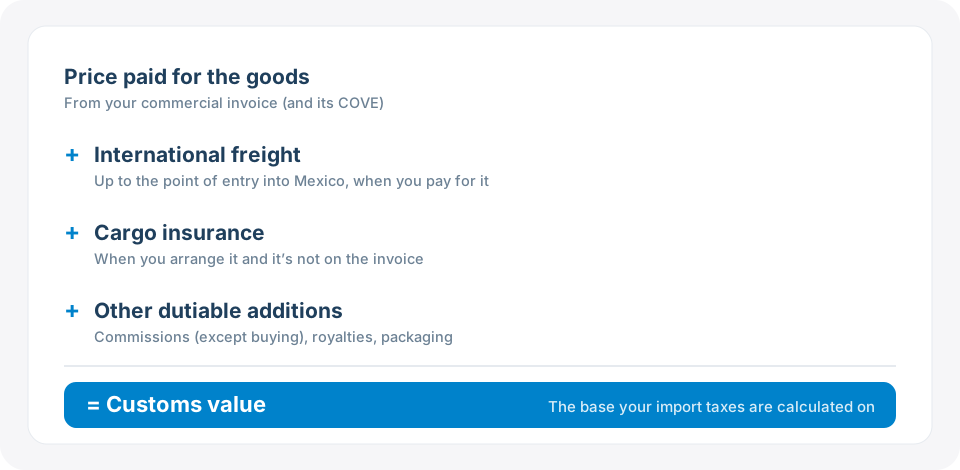
When you import, you pay taxes on the customs value of your goods. The value declaration (manifestación de valor, or MVE) is the document where you explain to the tax authority (SAT), under penalty of perjury, how you built that value: what you paid for the goods and which costs get added on top (freight, insurance, and so on).
Think of it as the itemized receipt for your import: if the authority ever asks “why did you declare this value?”, this document — with its backup paperwork — is your answer.
Important: this is the importer’s obligation, not your customs broker’s. Your broker will help you put it together, but the legal responsibility sits with you.
What changed? (and why everyone is talking about it)
| Before | Now (MVE) |
|---|---|
| Paper/PDF document | Electronic, transmitted through the trade single window |
| Totals only | Detail per invoice (COVE) |
| Costs lumped together | Every addition itemized according to your Incoterm |
| No mandatory attachments | With backup docs: proof of payment, invoice, contracts |
| — | Mandatory by customs regime, on a phased calendar |
How the extensions played out
- December 27, 2025 — RGCE 2026 (published in the federal gazette, DOF), Eleventh Transitory: the transitional scheme runs through July 31, 2026.
- July 31, 2026 — SAT-ANAM joint release 53-2026: the deadline moves to September 30, 2026.
- September 22, 2026 — Second Resolution of Amendments to the RGCE 2026 (DOF): keeps September 30 and adds relief through December 31, 2026 (certain documents under article 81 of the Customs Law Regulations need not travel inside the MVE, and contracts can be summarized on a single form).
- September 30, 2026 — Third Resolution of Amendments to the RGCE 2026 and Annex 22, first advance version on the SAT portal: it amends the Eleventh Transitory, extends the transitional scheme to October 31, 2026 and phases the mandate in by regime. It takes effect the day after publication in the DOF; as of this update it was still an advance version.
- October 3, 2026 — SAT-ANAM-ATDT joint release: publicly confirms October 31 and the phased calendar.
| Customs regime | Electronic filing becomes mandatory |
|---|---|
| Processing, transformation or repair in a bonded facility | November 1, 2026 |
| Strategic bonded facility | November 15, 2026 |
| In-bond transit | December 1, 2026 |
| Fiscal deposit | December 15, 2026 |
| Temporary import | January 1, 2027 |
| Definitive import | January 15, 2027 |
This calendar has already moved more than once in 2026, so treat any date you read elsewhere as provisional. The timeline above lists every change with its source: check your regime there, and with your customs broker, before you plan the clearance.
Checklist: what you need on hand
- Commercial invoice(s) and their COVE (the invoice’s electronic filing)
- Price paid or payable, and how you paid it (wire transfer or letter of credit)
- The shipment’s Incoterm (it defines which costs are on your side)
- Additions, itemized: international freight, insurance, commissions (except buying commissions), royalties, packaging
- If you buy from a related party: disclose it and assess whether it influenced the price
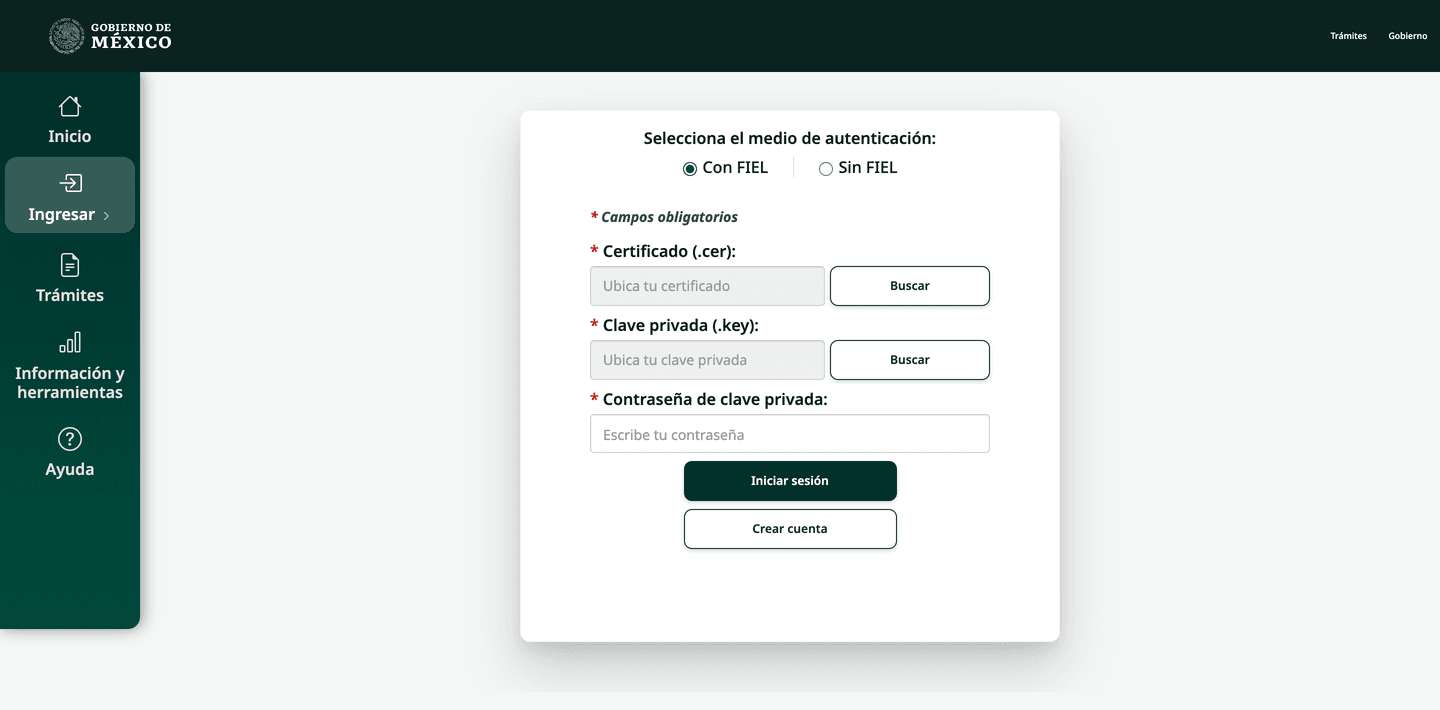
- A valid e.firma (Mexico’s e-signature) and access to the trade single window (ventanillaunica.gob.mx) — since May 2026 it operates as VUTCE, run by the digital agency (ATDT) instead of the SAT
Step by step, with the portal’s actual screens
The screenshots in this section come from the official VUCEM user manual (“Manifestación de valor portal VUCEM — Registro MV”): these are the exact screens you’ll see. The portal runs in Spanish — each caption tells you what you’re looking at. With the file ready, the full filing takes 20 to 40 minutes.
1 · Before you log in: build the file
- Gather: invoice(s) and their COVE folios, proof of payment, contract, freight and insurance receipts — scanned as PDF, grayscale, 300 DPI, 3 MB max per file (that’s what the portal requires).
- Sort the costs: whatever is on your side of the deal and not on the invoice is a dutiable addition (your Incoterm is the tell).
- Have the COVE folios at hand: the system asks for them one by one, and the session expires after 30 minutes of inactivity.
2 · Log in to the single window with your e.firma
At ventanillaunica.gob.mx, open the Ventanilla Única menu and pick Ingreso Solicitante (“applicant login”), then sign in with your e.firma.
3 · Find the filing
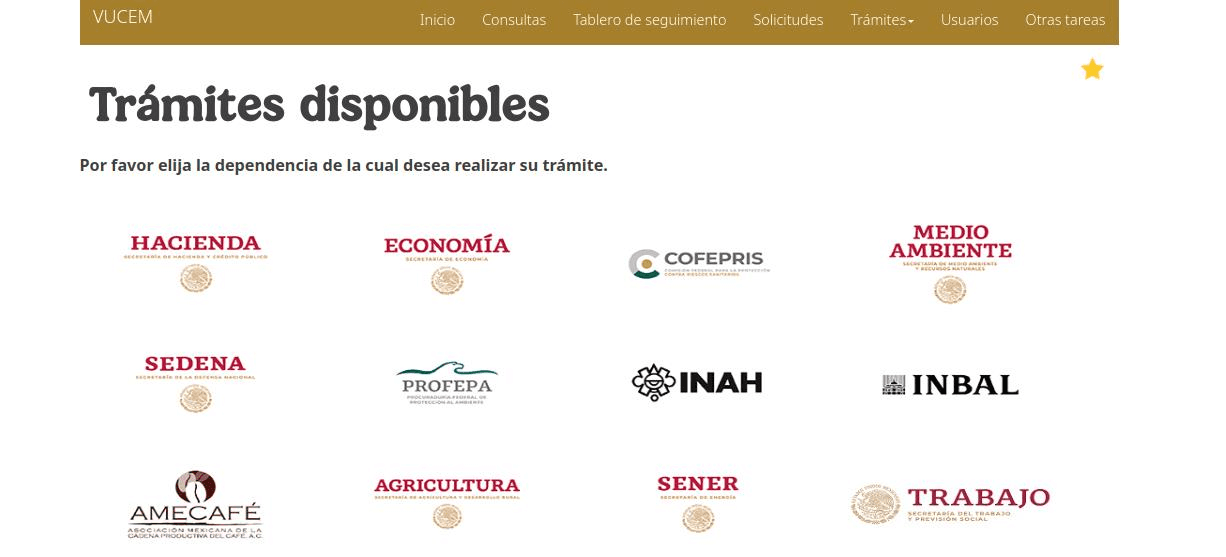
Inside the portal: Trámites → Solicitudes nuevas (“Filings → New requests”).

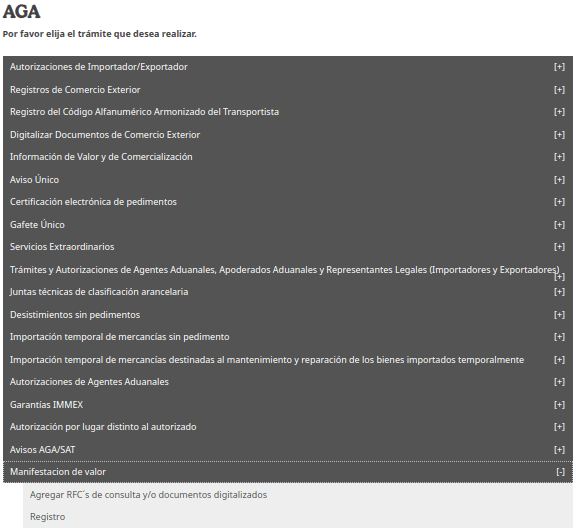
Choose the Hacienda agency (Mexico’s treasury) and, under the AGA block, open Manifestación de valor → Registro (“Value declaration → Register”).
4 · Portal step 1: fill out the request
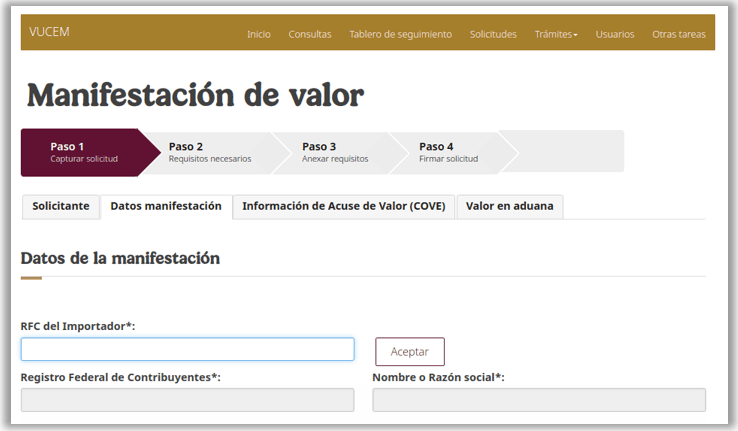
The form is tabbed. Solicitante shows your own data, prefilled and read-only. In Datos manifestación, type the importer’s tax ID (RFC) and click Aceptar — the system fills in the company name.
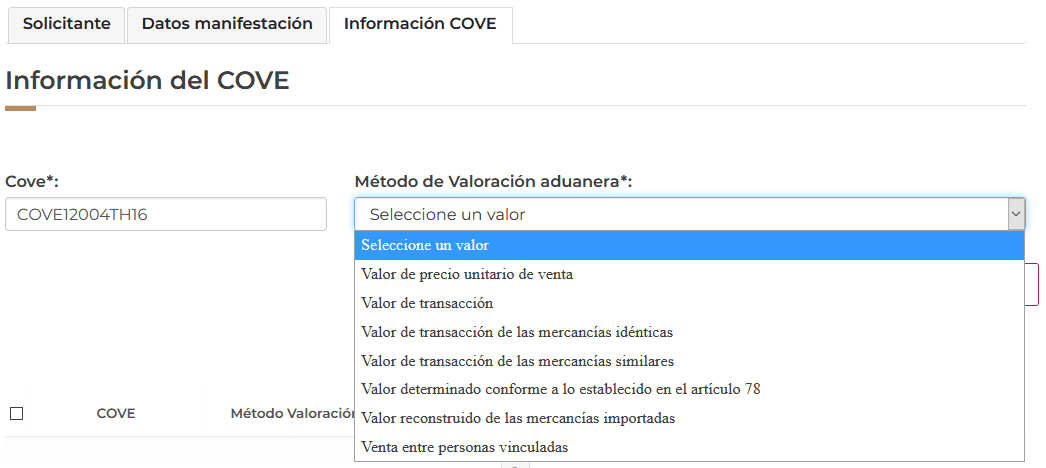
In Información COVE, enter each invoice’s COVE folio and pick the valuation method — for most operations that’s transaction value (“valor de transacción”). Click Agregar for every invoice.
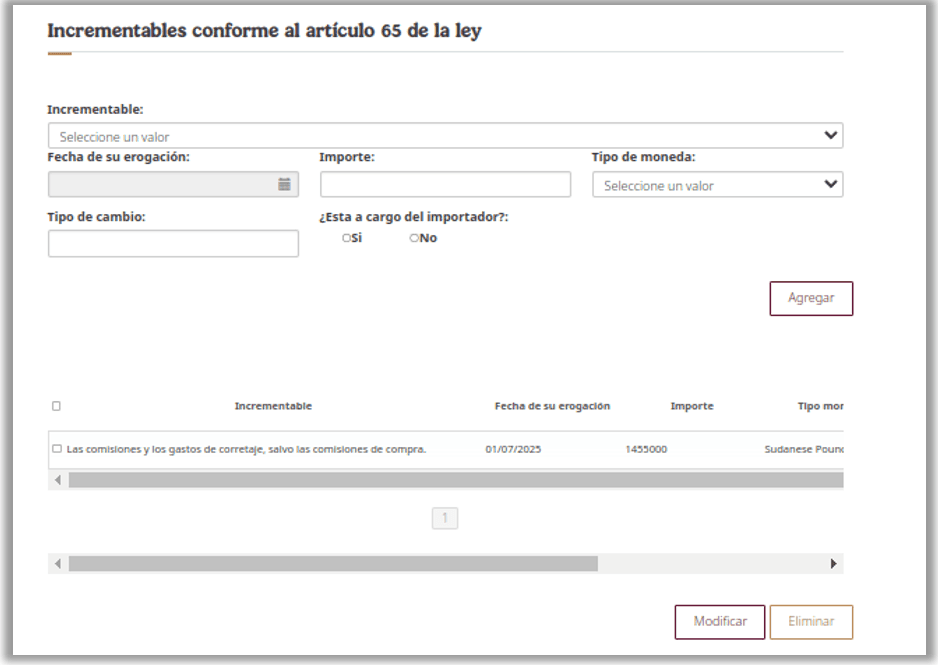
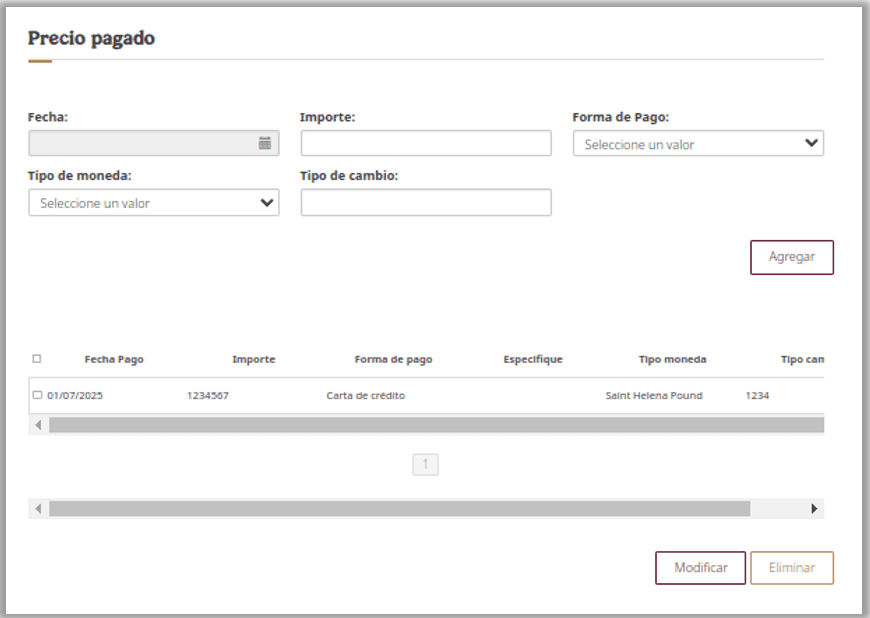
Select the COVE and click Agregar MV to complete it: that’s where you declare the Incoterm, whether you and your supplier are related parties, and the money sections:
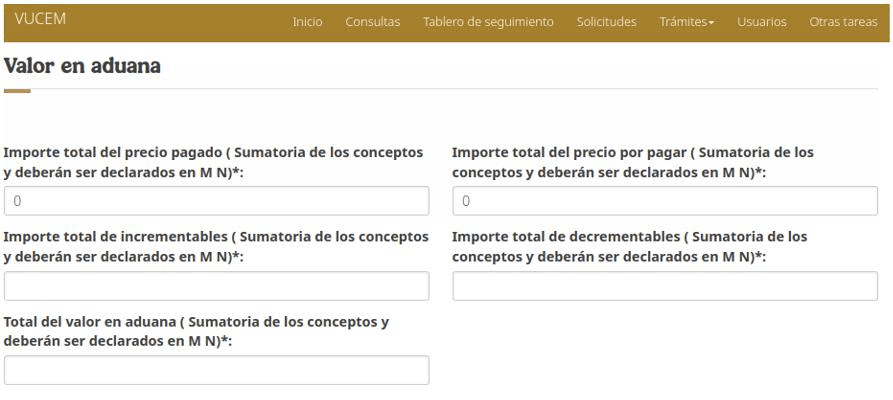
Close with the Valor en aduana tab: the totals (paid + payable + additions − deductions), declared in Mexican pesos. That total is the base for your import taxes.
5 · Portal steps 2 and 3: requirements and attachments
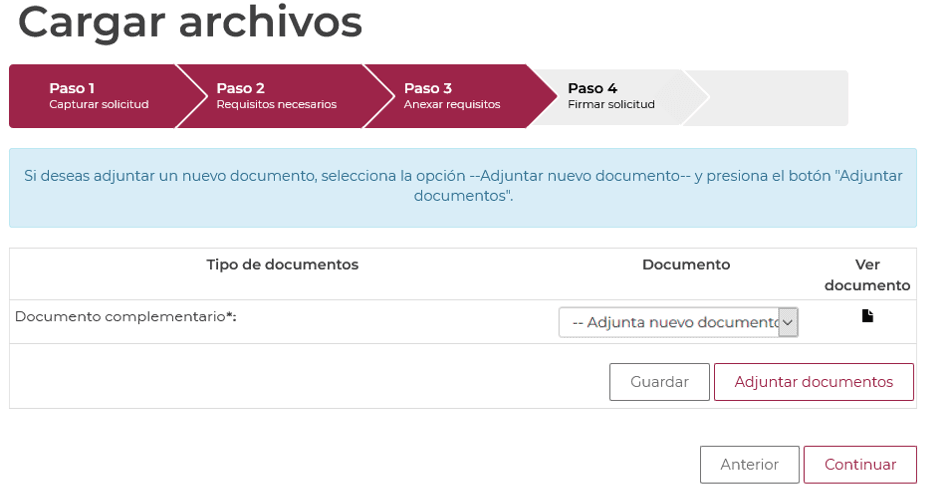
When you hit Continuar, VUCEM validates and lists which documents are required or optional for what you captured (step 2). In step 3 you attach them: Adjuntar documentos → Examinar (“Attach → Browse”), and make sure every file shows OK (Correcto) status.
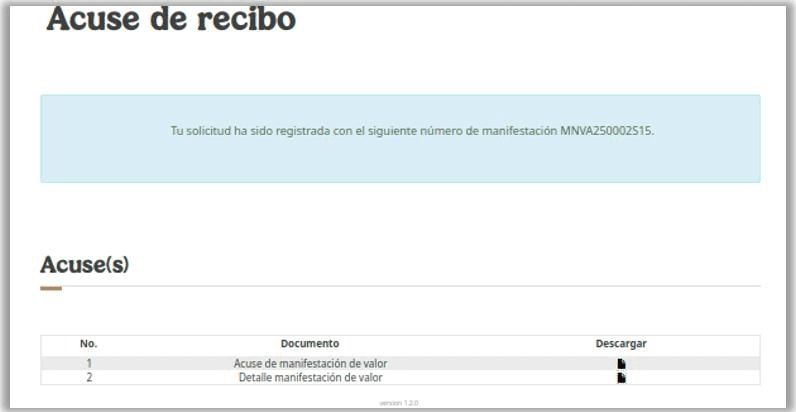
6 · Portal step 4: sign and save your folio
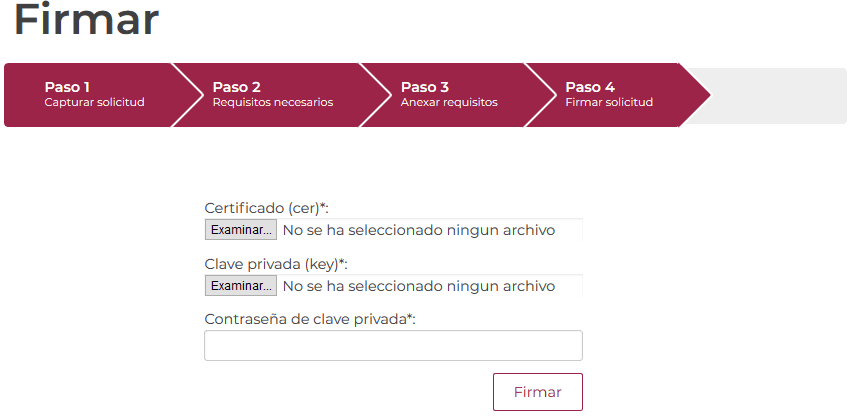
On signing, the portal issues two receipts (the Acuse and the Detalle of the value declaration) and assigns your declaration number (it starts with “MNVA…”). Download both right then.
7 · After transmitting
- Hand the folio to your customs broker before clearance — once your regime is on the electronic calendar, no folio means no clearance.
- File receipts and backup docs with the shipment’s paperwork: at least 5 years in your records. It’s the first thing an audit asks for.
The 5 mistakes we see most
- Leaving it for clearance day — once your regime is on the electronic calendar, no transmitted MVE means no clearance. Your shipment stops.
- Leaving out additions you paid separately from the invoice (freight is the classic one).
- Not having the proof of payment on hand: it’s now a required attachment.
- Ignoring the related-party question when you buy from your parent or sister company.
- Assuming “the broker takes care of that”: your broker assists; the obligation is yours.
Quick questions
Does it apply to my temporary imports (IMMEX)? It does, on its own date: temporary imports start on January 1, 2027 and definitive imports on January 15, 2027. If you run mixed regimes, check each one against the table above with your brokerage.
One MVE per customs entry (pedimento) or per invoice? The detail is built per invoice/COVE — a shipment with several invoices needs each one broken out.
Did the deadline sneak up on you? At FreightSpot we prepare and transmit value declarations every day. Write to us and we’ll have you ready before it becomes mandatory — no drama.